
Run EchoCall straight from ChatGPT and Claude
The MCP server for your voice and chat agents
Ask your AI app how many calls came in yesterday and what callers wanted. Have it rewrite your agent’s greeting or add a new page to its knowledge. EchoCall MCP links ChatGPT, Claude and other AI apps to your workspace with no coding, and only as far as you allow.
You: How many calls did we get yesterday, and what were they about?
- EchoCall: read the daily report and 23 conversations
AI app: You had 23 calls yesterday, 61 minutes in total. Most callers wanted an appointment (11), followed by questions about quotes (7) and the emergency service (5).
You: Add to the greeting that we are closed on December 24.
- EchoCall: updated agent “Reception”
AI app: Done. From now on your agent tells callers that you are closed on December 24.
In short: what is EchoCall MCP?
EchoCall MCP is the MCP server of EchoCall at https://hub.echocall.de/mcp. It links AI apps such as ChatGPT, Claude, Cursor, VS Code and Claude Code to your EchoCall workspace. The AI app can then read calls, chats and reports and, if you allow it, edit agents, knowledge, phone numbers and campaigns for you. You sign in to EchoCall once in your browser and pick the access level. The AI app never sees your login details.
As of November 4, 2026, EchoCall Hub 1.19.0
The facts at a glance
hub.echocall.de/mcp
one server address for every AI app
Source: EchoCall OAuth metadata
OAuth or API key
browser sign-in with OAuth and PKCE, an API key for programs without OAuth
Source: EchoCall API documentation
2 access levels
read only, or read and change; every connection can be revoked in the hub at any time
Source: EchoCall API documentation
17 areas
every function of the EchoCall API v1 as a tool, from agents and conversations to phone numbers
Source: EchoCall API reference 1.19.0
14 days
free starting credit to try it, no credit card required
Source: EchoCall pricing
What your AI app gets done in EchoCall
EchoCall MCP offers every function of the EchoCall API as a tool. Your AI app picks the right one on its own; you just say in your own words what you need.
Review calls and chats
Call counts, durations and transcripts of your phone calls, plus threads from the website chat and WhatsApp, for one day, a week or a single agent.
For example“Summarize last week’s calls and list the three most common requests.”
Adjust your agents
Change the greeting, instructions, voice and language of your voice and chat agents without clicking through menus.
For example“Make our reception greeting friendlier and shorter.”
Keep knowledge current
Add new pages of your website, such as prices or opening hours, to an agent’s knowledge, remove outdated sources and have content read in again.
For example“Add our new pricing page to the knowledge of the Reception agent.”
Manage phone numbers
Search available numbers by country, assign a number to an agent or check which number reaches which agent.
For example“Which of our numbers goes to the Reception agent?”
Prepare call campaigns
Create, review, start or cancel outbound campaigns, for example appointment reminders for your customers.
For example“Set up a campaign for tomorrow’s appointment reminders, but do not start it yet.”
Answer chats
Read open chats and tickets, reply in the chat and close a conversation once the request is handled.
For example“Show me today’s open chats and answer the question about our opening hours.”
Connected in three steps
You need neither technical skills nor an API key. Signing in works the way you know it, through EchoCall in your browser.
Copy the address
Copy the server address https://hub.echocall.de/mcp. You will also find it in the developer area of the hub, next to a copy button.
https://hub.echocall.de/mcpPaste it into your AI app
In ChatGPT, add a custom MCP server under Plugins, or in Claude add a custom connector under Connectors, and enter the address.
Approve it in EchoCall
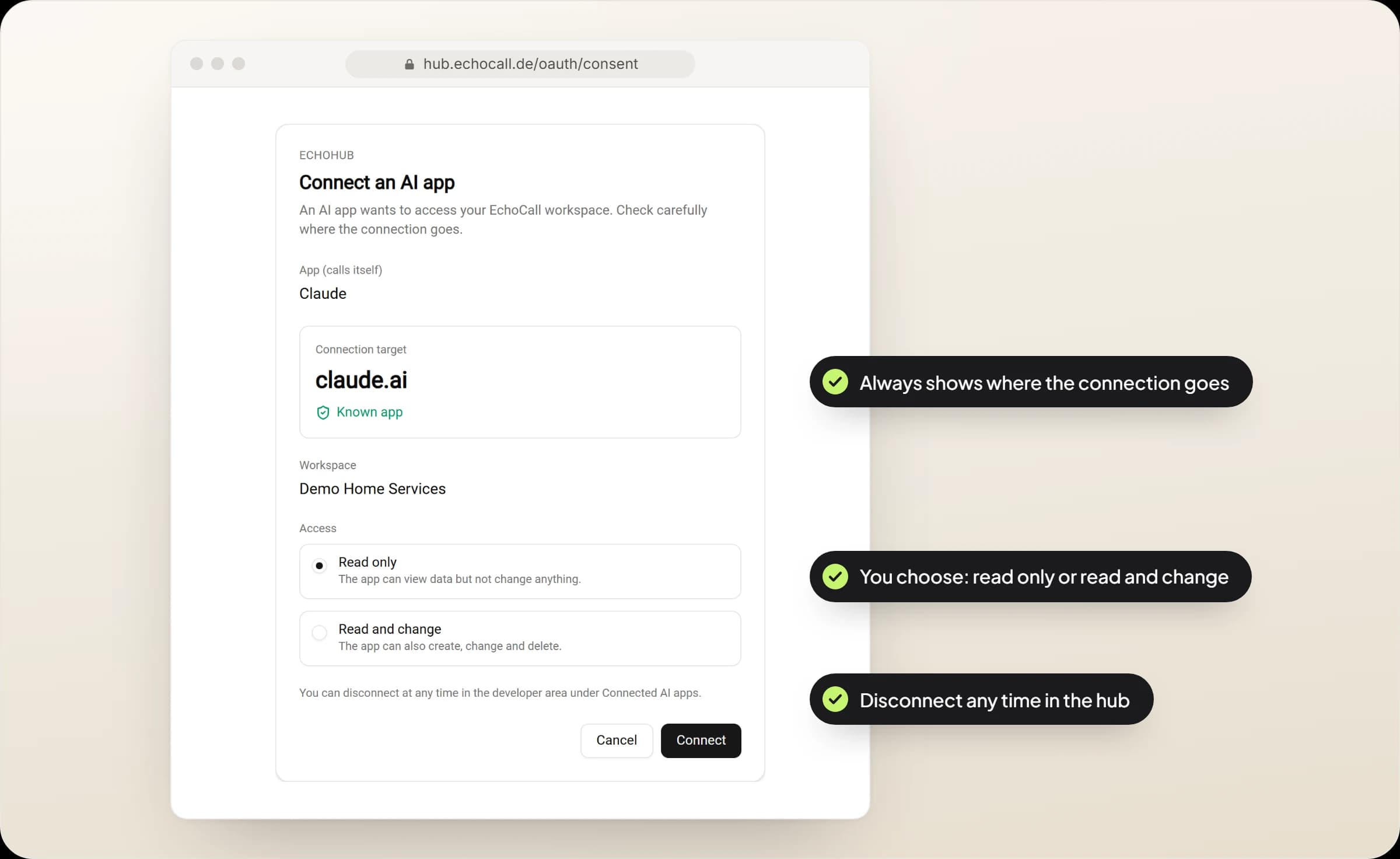
Your browser opens EchoCall. Sign in, choose read only or read and change, and confirm. From then on your AI app is ready to work.
Works with
ChatGPT
A custom MCP server under Plugins, on the web with Business, Enterprise or Edu
Claude
A custom connector under Connectors, on every plan
Cursor
An entry in the mcp.json file
VS Code
An entry in the .vscode/mcp.json file
Claude Code
One command in the terminal
Other programs
Any program that speaks MCP over HTTP with OAuth or an API key
Secure, because you decide
A connection to your workspace is like a key to your business. That is why you decide who gets it, how far it reaches and how long it stays valid.
No login details in the AI app
Sign-in runs through OAuth with PKCE directly at EchoCall. The AI app only receives an access token that you can revoke at any time.
Read only as its own level
Read only is enough for reports. The AI app then cannot create, change or delete anything.
Every connection in view
Under Connected AI apps in the hub you see each connection with its access level, the day it was approved and when it was last used.
Disconnected in one click
Once you disconnect, the AI app loses access immediately and has to be connected again.
An email for every new connection
The workspace owner gets an email as soon as a new AI app has been connected.
Team roles still apply
Team members can only approve what their role allows. Revoke a permission or remove a member and their connections end. IP and domain allowlists apply to AI apps as well.
Important: with read and change, an AI app can also delete agents, buy phone numbers and start campaigns, which can incur costs. When in doubt, choose read only.
Whatever your AI app reads through EchoCall is processed by the provider of that AI app under its own terms. So decide deliberately which app you use with which data.
For developers: set up in a minute
In Cursor, VS Code and Claude Code the server address is all you need, and sign-in runs through OAuth in the browser there too. Programs without OAuth use an API key.
Add EchoCall to the .cursor/mcp.json file of your project, or to ~/.cursor/mcp.json for all projects.
{
  "mcpServers": {
    "echocall": {
      "url": "https://hub.echocall.de/mcp"
    }
  }
}Add EchoCall to the .vscode/mcp.json file of your project and start the server from there.
{
  "servers": {
    "echocall": {
      "type": "http",
      "url": "https://hub.echocall.de/mcp"
    }
  }
}Run this command in your terminal, then sign in with /mcp.
claude mcp add --transport http echocall https://hub.echocall.de/mcpFor programs without OAuth: create an API key in the hub and send it as a header. The key carries the same rights as in the API.
Authorization: Bearer eck_live_...Want fewer tools? Append ?tags= to the address and EchoCall only offers those areas, for example ?tags=agents,conversations.
https://hub.echocall.de/mcp?tags=agents,conversationsIs EchoCall MCP right for you?
A good fit if
- you already use ChatGPT or Claude every day and would rather review your calls there than export reports.
- you would rather change agents, knowledge and numbers with one sentence than through menus.
- your team works in Cursor, VS Code or Claude Code and wants to build EchoCall into its own workflows.
Not the right tool yet if
- your phone agent itself should use tools from other vendors during a call. EchoCall MCP runs your workspace from the AI app, not the conversation. For the call, use the integrations of your agent.
- you first want to hear how an EchoCall agent sounds. The live demo gets you there faster.
Frequently asked questions about EchoCall MCP
MCP stands for Model Context Protocol, an open standard that lets AI apps talk to other software. An MCP server such as EchoCall MCP tells the AI app which tools exist and runs them when the AI app calls them.
ChatGPT, Claude, Cursor, VS Code and Claude Code, plus any other program that supports MCP over HTTP with OAuth or an API key. ChatGPT currently offers custom MCP servers on the web for Business, Enterprise and Edu, Claude on every plan.
No. EchoCall MCP is part of every plan. You only pay for what you would pay for anyway, such as call minutes, a phone number you buy or a campaign you start.
Yes, EchoCall MCP requires an active plan. The free starting credit counts, so you can connect right after signing up and try it for 14 days.
Only if you chose read and change when connecting. With read only it cannot create, change or delete anything. Whether the AI app asks before an action depends on the app and your settings there, which is why read only is the right choice for reports.
In the hub, open the developer area, go to Connected AI apps and click Disconnect. Access ends immediately. If you want to use the app again later, simply connect it anew.
Yes. Every team member connects their own AI app and gets at most the rights of their role. Someone who may only read cannot approve a write connection. The list of connections shows who approved which app.
Only the data of your workspace that belongs to the tools it calls, and only within the access level you chose. What the AI app reads is processed by its provider under its own terms.
Both offer the same functions. The API is for developers who build EchoCall into their own software. EchoCall MCP opens those functions to AI apps, so you can use them with plain sentences.
Read on
- Guide: add an MCP server to ChatGPT and Claude
- All EchoCall integrations
- AI voice agent for your phone line
- Security and compliance
- Plans and pricing
Last reviewed on . EchoCall MCP features and terms reflect that date.


Connect EchoCall to your AI app
Sign up at hub.echocall.de and start with 30 voice minutes and 30 chat conversations of starting credit, valid for 14 days, no credit card required. Connecting ChatGPT or Claude then takes a few minutes.