In short: In ChatGPT you add an MCP server under Plugins, in Claude you add it as a custom connector under Connectors. Either way you only enter the server address, for EchoCall https://hub.echocall.de/mcp, and then sign in with the server's provider in your browser. ChatGPT currently offers custom MCP servers on the web for the Business, Enterprise and Edu plans, Claude on every plan, with one custom connector on the free plan. In Cursor, VS Code and Claude Code, one entry in a file or a single command is enough.
What an MCP server is
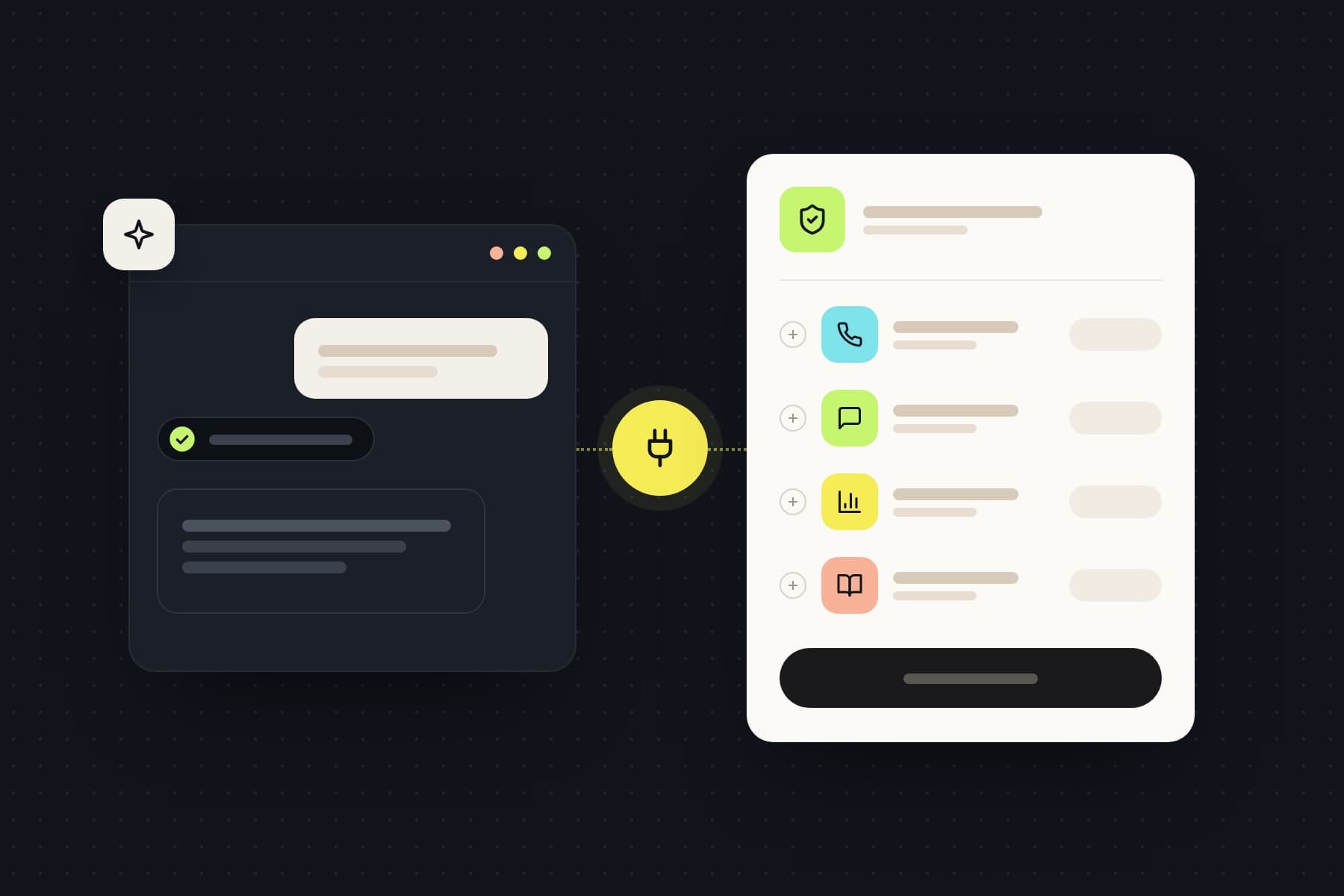
MCP stands for Model Context Protocol, an open standard that lets AI apps talk to other programs. An MCP server tells the AI app which tools exist, for example "read yesterday's calls" or "change an agent's greeting", and runs them when the AI app calls them. You write what you need in your own words, and the AI app picks the right tool by itself.
For you this means no more exporting reports or clicking through menus to change a small detail. You ask where you already work. How far the AI app may go is something you decide when you connect it.
What you need first
| AI app | Where you add the server | Requirement, as of November 2026 |
|---|---|---|
| ChatGPT | Plugins, custom MCP server | Business, Enterprise or Edu, web only; on Business, admins only |
| Claude | Customize, Connectors, custom connector | every plan; one custom connector on Free; on Team, set up by the owners |
| Cursor | file .cursor/mcp.json | a current version of Cursor |
| VS Code | file .vscode/mcp.json | a current version of VS Code |
| Claude Code | command claude mcp add in the terminal | Claude Code installed |
You also need an account with the provider of the MCP server. For EchoCall that is a workspace on hub.echocall.de with an active plan. The free starting credit counts, so you can connect right after signing up.
The menu names in this guide come from the help pages of OpenAI and Anthropic. They may be worded slightly differently in your version of the app, the path stays the same.
How to add an MCP server to ChatGPT
OpenAI has recently made this simpler. You now add custom MCP servers straight from Plugins and no longer need to turn on developer mode first. Instead, you acknowledge a risk warning for each server.
- Open ChatGPT in your browser and go to Plugins.
- Click the plus button and choose Add custom MCP server.
- Enter a name, for example EchoCall, and optionally a short description.
- Under Connection, enter the server address:
https://hub.echocall.de/mcp. - Choose OAuth as the authentication.
- Read the risk warning and tick I understand and want to continue.
- Click Create as a plugin and review the tools ChatGPT found.
- Install the plugin. EchoCall opens in your browser, you sign in and approve the access (more on that below).
Then start a new chat, type @ and choose EchoCall. The selection applies to that one message. For a follow-up that needs fresh data, mention EchoCall with @ again.
Good to know: in a Business workspace, only admins and owners may create custom MCP servers and publish them for the team. On Enterprise and Edu, admins can grant that permission to selected members through roles. Before ChatGPT changes anything, it asks you by default. That applies to every tool the server does not explicitly mark as read only.
How to add an MCP server to Claude
In Claude, your own MCP servers are called custom connectors. They work in Claude in the browser, in Claude Desktop and in Cowork. Anthropic connects from its cloud, so the server has to be reachable on the public internet. That is the case for EchoCall.
Free, Pro and Max:
- Open Customize and then Connectors.
- Click + Add and then Add custom connector.
- Enter a name and the server address
https://hub.echocall.de/mcp, then Continue. - Claude detects the sign-in settings by itself. Review them, usually keep them as they are, and click Continue.
- Click Add and sign in to EchoCall in your browser.
Team and Enterprise: Here an owner adds the connector under Organization settings and Connectors (Add, Custom, Web). Each member then connects under Customize and Connectors by clicking Connect. That way everyone signs in with their own EchoCall account and gets no more than the rights of their role.
In a chat, you switch the connector on with the plus button at the lower left and Connectors. Claude asks for permission before it uses a tool. Only click Allow always for tools you trust to run without asking, which usually means reading tools rather than changing ones. You can switch off single tools in the Search and tools menu.
Cursor, VS Code and Claude Code
For developers it is even quicker. Here too, sign-in runs through OAuth in the browser, so no password ever sits in a file.
Cursor: Add the server to .cursor/mcp.json in your project, or to ~/.cursor/mcp.json for all projects.
{
  "mcpServers": {
    "echocall": { "url": "https://hub.echocall.de/mcp" }
  }
}
VS Code: Add the server to .vscode/mcp.json and start it from there.
{
  "servers": {
    "echocall": { "type": "http", "url": "https://hub.echocall.de/mcp" }
  }
}
Claude Code: One command in the terminal, then sign in with /mcp.
claude mcp add --transport http echocall https://hub.echocall.de/mcp
Programs without OAuth connect with an API key from the developer area of the hub, sent as an Authorization: Bearer header. The key has the same rights as in the EchoCall API.
What happens when you approve the connection
Whichever AI app you connect, you end up on the same EchoCall page. It shows three things you should check before you click Connect:
- The connection target. In large type you see the address EchoCall hands the access to, such as chatgpt.com or claude.ai. Known AI apps are marked as such. If you see an address you do not recognise, cancel.
- The workspace. If you have several, this tells you which one the AI app will access.
- The access level. Read only allows reports but no changes. Read and change also allows creating, changing and deleting.
The AI app never sees your sign-in details. It only receives an access key for exactly this workspace and exactly this level. The owner of the workspace gets an email for every new connection.
Five tasks to start with
Once the connection is in place, try it with plain sentences. These five examples show what you can do with EchoCall:
- Report: "Summarise last week's calls and name the three most common requests."
- Look up: "Which of our numbers goes to the Reception agent?"
- Adjust: "Add to the greeting that we are closed on December 24."
- Update knowledge: "Add our new pricing page to the knowledge of the Reception agent."
- Prepare: "Create a campaign for tomorrow's appointment reminders, but do not start it yet."
The first two already work with read only. The other three need read and change.
Security: what to watch out for
A connection to an MCP server is like a key to your business. These rules help you use it safely:
- Start with read only. That is enough for reports. You can add a second connection with read and change at any time if you really need it.
- Read confirmations before you agree. With read and change, an AI app can also delete agents, buy phone numbers and start campaigns in EchoCall. This can incur costs.
- Only connect servers you trust. OpenAI and Anthropic do not review custom MCP servers. Both also warn about hidden instructions in content an AI app reads, such as web pages.
- Keep the AI app's provider in mind. What the AI app reads through the server is processed by its provider under its own terms. Choose deliberately which app you use with which data.
- Tidy up. In the EchoCall hub, under the developer area and Connected AI apps, you see every connection with its access level, the date it was approved and when it was last used. One click on Disconnect ends the access at once.
When something does not work
- ChatGPT does not show Add custom MCP server. Your plan or your role does not allow it. On Business, ask an admin of the workspace.
- EchoCall says an active plan is missing. EchoCall MCP requires a plan, and the starting credit counts. Check in the hub whether it is still valid.
- EchoCall says you may not connect AI apps. Your team role does not allow it. Ask the owner of the workspace.
- The request has expired. The approval is only valid for a short time. Start the connection again in your AI app.
- The AI app does not find the right tool. Mention EchoCall explicitly in your sentence, or add
?tags=to the address so EchoCall only offers certain areas, for examplehttps://hub.echocall.de/mcp?tags=agents,conversations.
Frequently asked questions about MCP servers in ChatGPT and Claude
Can I use an MCP server with ChatGPT Plus?
According to OpenAI's help, custom MCP servers are currently available for Business, Enterprise and Edu, on the web. Plus is not listed there. Since OpenAI has changed the flow several times recently, the quickest check is whether Add custom MCP server appears under Plugins.
Do I still need developer mode in ChatGPT?
No. In the current flow you add custom MCP servers straight from Plugins and acknowledge a risk warning instead.
Does an MCP server work on the free version of Claude?
Yes. On the Free plan you can add one custom connector, on Pro, Max, Team and Enterprise several.
Does it work on my phone?
In ChatGPT you can only add custom MCP servers on the web. In Claude you set up the connector in the settings, and Anthropic makes the connection itself from its cloud for all Claude apps.
What does EchoCall MCP cost?
Nothing extra. EchoCall MCP is included in every plan. Costs only arise for what you would pay for anyway, such as voice minutes, a purchased phone number or a started campaign.
What is the difference between an MCP server and an API?
Both offer the same functions. An API is meant for developers who build a product into their own software. An MCP server makes those functions available to AI apps, so you can use them with plain sentences. At EchoCall, the MCP server offers every function of the API as a tool.
Can my phone agent use MCP servers during a call?
That is not what this guide is about. EchoCall MCP controls your workspace from your AI app, not the conversation. What your agent may look up or book during a call is set through its integrations.
Sources
- OpenAI, Connecting custom MCP servers in ChatGPT: help.openai.com
- OpenAI, Add custom MCP server: developers.openai.com
- Anthropic, Get started with custom connectors using remote MCP: support.claude.com
- Model Context Protocol, specification: modelcontextprotocol.io
- EchoCall, EchoCall MCP: echocall.de/en/mcp
- EchoCall, API documentation: echocall.de/docs
All links were checked on November 4, 2026.